
On This Page
Quick Answer: How to Download MT5 Exness?
To download MetaTrader 5, you can go directly to the official MetaTrader 5 website and install in a few simple steps:
- Go to the official MetaTrader 5 website
- Choose the MetaTrader 5 version that matches your device: Windows, MacOS, Android, or iOS
- Download and install the MT5 app
👉 The entire process takes less than 5 minutes.
What Is MT5 Exness?
MT5, or MetaTrader 5, is a trading platform developed by MetaQuotes. It is the software traders use to view charts, analyze the market, place orders, and manage trades.
Exness is a broker that provides trading accounts, market access, pricing, leverage, deposits, withdrawals, and trading conditions. When people say “MT5 Exness,” they usually mean using an Exness trading account on the MT5 platform.
With an Exness account connected to MT5, you can trade instruments such as:
Forex pairs, such as EUR/USD, GBP/USD, and USD/JPY
Commodities, such as Gold and Oil
Indices and Stocks CFDs
Cryptocurrencies, depending on your country and account conditions
System Requirements for MT5
Before downloading MetaTrader 5, make sure your device meets the basic requirements for smooth installation and trading.
For PC / Windows
Minimum Requirements:
- Windows 7 / 8 / 10 / 11
- 2 GB RAM
- 200 MB free disk space
- Stable internet connection
Recommended:
- Windows 10 or higher
- 4 GB RAM or more
- SSD storage for faster performance
- Stable Wi-Fi or wired internet connection
For Android
Minimum Requirements:
- Android smartphone or tablet
- Google Play Store access
- Enough storage space to install the MT5 app
- Stable internet connection
Recommended:
- Updated Android version
- At least 2 GB RAM
- Stable mobile data or Wi-Fi connection
- Screen lock enabled for better account security
For macOS / MacBook / iMac
Minimum Requirements:
- MacBook, iMac, Mac mini, or other macOS device
- Access to the official MetaTrader 5 download page
- Enough storage space to install MT5
- Stable internet connection
Recommended:
- Updated macOS version
- Stable Wi-Fi or wired internet connection
- At least 4 GB RAM or more
- Enough free disk space for installation, updates, and trading data
For iOS / iPhone / iPad
Minimum Requirements:
- iPhone or iPad
- App Store access
- Enough storage space to install the MT5 app
- Stable internet connection
Recommended:
- Updated iOS or iPadOS version
- Stable Wi-Fi or mobile data connection
- Face ID, Touch ID, or passcode enabled for extra security
👉 MetaTrader 5 is lightweight and works smoothly on most modern PCs, Android phones, iPhones, and tablets.
How to Download MT5 for Exness
Follow these steps to install MetaTrader 5 and connect it with your Exness trading account.
Step 1: Go to the Official MetaTrader 5 Website
Open your browser and visit the official MetaTrader 5 website.
This is the safest starting point because MT5 is a separate trading platform developed by MetaQuotes, not by Exness.
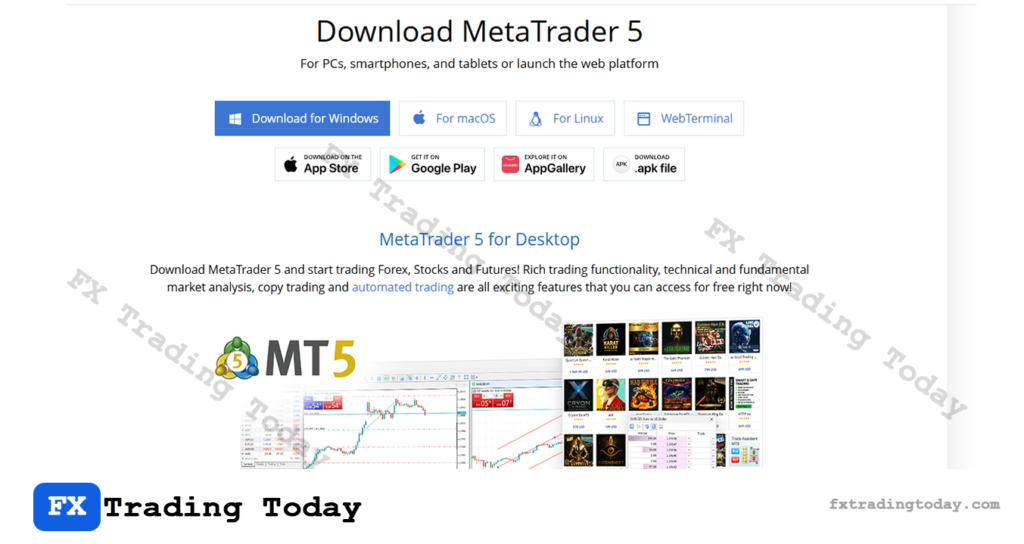
Step 2: Choose the MT5 Version for Your Device
On the MetaTrader 5 website, choose the version that matches your device:
- Windows / PC or MacOS: download the MT5 installer directly
- Android: go to the official Google Play Store link from the MT5 website
- iOS / iPhone / iPad: go to the official App Store link from the MT5 website
Step 3: Download and Install MetaTrader 5
Follow the correct installation method for your device:
For PC / Windows or MacOS:
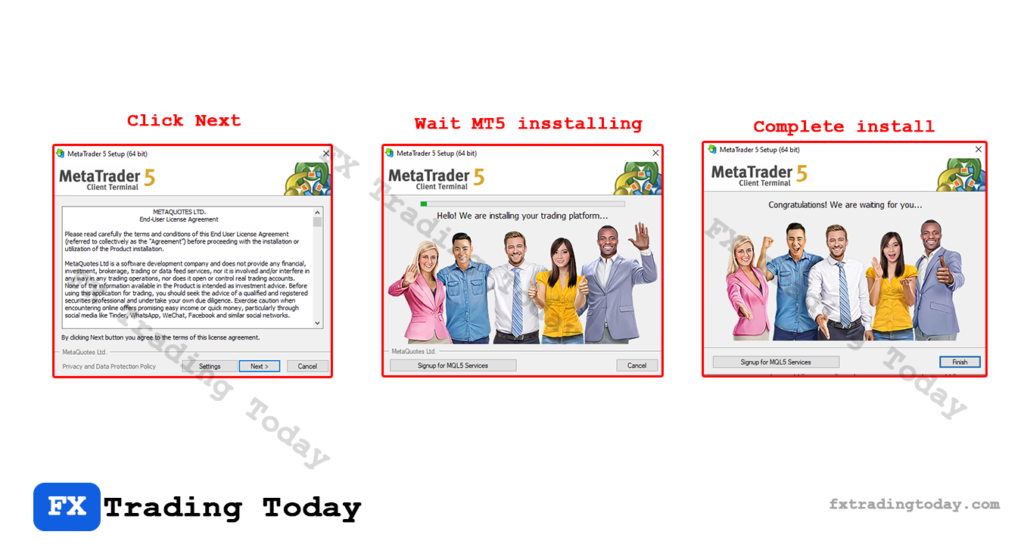
- Click Download MetaTrader 5 for Windows / MacOS
- Open the downloaded file
- Click Run
- Follow the installation instructions
- Wait for the setup to complete
For Android / iOS:
- Open the Google Play Store / App Store from the MT5 website
- Tap Install / Get
- Wait for the app to finish downloading
👉 After installing MT5, you can follow this step-by-step guide on how to connect your Exness account to MT5
Prefer MetaTrader 4 instead? Follow our step-by-step guide to download Exness MT4.
Common Issues When Installing MT5
Even though MetaTrader 5 is usually easy to install, some users may face download, installation, login, or connection problems depending on the device they use. Below are the most common MT5 installation issues on Windows, macOS, Android, iPhone, and iPad, along with practical fixes.
Why Can’t I Download MT5 on Windows?
If you cannot download MT5 on your Windows PC, the issue may come from your browser, internet connection, antivirus software, or an incorrect download source.
How to fix it:
Check that your internet connection is stable.
Use a different browser such as Chrome, Edge, or Firefox.
Make sure you download MT5 from the official MetaTrader 5 website or from the broker’s official website.
Temporarily disable antivirus or firewall if it blocks the installer.
Avoid downloading MT5 from unknown third-party websites.
👉 For safety, always download MT5 from an official source to reduce the risk of fake or modified installation files.
Why Won’t MT5 Install on Windows?
If the MT5 installer opens but does not complete the installation, your Windows system may block the file or lack permission to run it.
How to fix it:
Right-click the MT5 installer and choose Run as administrator.
Make sure your Windows system is updated.
Check that your PC has enough storage space.
Restart your computer and run the installer again.
Delete the old installer file and download a fresh version.
If MT5 still does not install, check whether your antivirus software is blocking the setup file.
Why Can’t I Install MT5 on macOS?
On macOS, MT5 installation issues usually happen because of security settings, outdated macOS versions, or compatibility limitations.
How to fix it:
Make sure your macOS version is updated.
Download MT5 from the official MetaTrader 5 website or your broker’s official website.
Open System Settings → Privacy & Security and allow the app if macOS blocks it.
Check whether your Mac uses Apple Silicon or Intel, then follow the correct installation method if required.
Restart your Mac and try opening MT5 again.
👉 Some macOS users may need additional setup depending on the MT5 version provided by the broker.
Why Is MT5 Not Opening on PC or Mac?
If MT5 is installed but does not open, the app may be blocked, corrupted, or affected by an incomplete installation.
How to fix it:
Restart your device.
Run MT5 as administrator on Windows.
Allow MT5 in macOS security settings.
Reinstall MT5 using a fresh installer.
Close other heavy apps that may slow down your device.
Check whether your device meets the minimum system requirements.
If the problem continues, uninstall MT5 completely and install the latest version again.
Why Can’t I Find MT5 on Google Play Store?
If you cannot find MT5 on Android, it may be unavailable in your region, hidden due to Play Store settings, or affected by device compatibility.
How to fix it:
Search for MetaTrader 5 directly in the Google Play Store.
Check that your Google Play country/region is correct.
Update Google Play Store and Google Play Services.
Make sure your Android version supports the MT5 app.
Visit the official MetaTrader 5 website and follow the Android download option.
Avoid installing random APK files from unknown websites because they may not be safe.
Why Won’t MT5 Install on Android?
If MT5 does not install on your Android phone, the issue may be caused by low storage, outdated software, or Play Store errors.
How to fix it:
Free up storage space on your phone.
Restart your Android device.
Update your Android system and Google Play Store.
Clear the cache of Google Play Store.
Check your internet connection.
Try installing again from the official store link.
If the installation is stuck, cancel the download and start it again.
Why Can’t I Download MT5 on iPhone or iPad?
On iOS and iPadOS, MT5 must be downloaded from the official App Store. If you cannot download it, the issue may be related to your Apple ID, region, storage, or iOS version.
How to fix it:
Open the App Store and search for MetaTrader 5.
Make sure your Apple ID region supports the app.
Update your iPhone or iPad to the latest available iOS/iPadOS version.
Check that you have enough storage space.
Restart your device and try again.
Use the official App Store link from the MetaTrader 5 website if needed.
👉 For iPhone and iPad, always download MT5 from the official App Store, not from external websites.
Why Is MT5 Installed but I Can’t Log In?
If MT5 is installed successfully but you cannot log in, the problem is usually related to incorrect account details or the wrong trading server.
How to fix it:
Check your MT5 login ID from your broker account.
Enter your trading password, not your Personal Area password.
Choose the correct broker server name.
Make sure you are using an MT5 account, not an MT4 account.
Copy and paste the login details carefully to avoid typing mistakes.
👉 If you use Exness, you can find your MT5 login ID and server name inside your Exness Personal Area.
Why Does MT5 Show “Invalid Account”?
The Invalid Account message usually means the login ID, password, server, or account type is incorrect.
How to fix it:
Confirm that the account is created for MT5.
Check the trading account number again.
Reset your trading password if needed.
Select the correct Exness server.
Avoid using MT4 login details on MT5.
This issue is common when traders accidentally try to log in with an MT4 account on the MT5 platform.
Why Does MT5 Show “No Connection”?
The No Connection error means MT5 cannot connect to the trading server.
How to fix it:
Check your internet connection.
Switch from Wi-Fi to mobile data, or the opposite.
Restart MT5.
Check whether the broker server is correct.
Disable VPN if it causes connection issues.
Restart your router or device.
If the server is temporarily unavailable, wait a few minutes and reconnect.
Why Can’t I See My Exness Account on MT5?
If your Exness account does not appear on MT5, you may be using the wrong account type or server.
How to fix it:
Make sure your Exness trading account was created for MT5.
Check the correct server name in your Exness Personal Area.
Use your MT5 trading account login ID.
Do not use your Exness Personal Area email as the MT5 login.
Create a new MT5 account inside Exness if your current account is only for MT4.
👉 To avoid login mistakes, follow this guide: How to connect your Exness account to MT5 step by step.
Why Is MT5 Slow or Freezing After Installation?
MT5 may run slowly if your device has limited memory, too many charts open, or too many indicators running at the same time.
How to fix it:
Close unnecessary charts.
Remove unused indicators and Expert Advisors.
Restart MT5.
Close other apps running in the background.
Update MT5 to the latest version.
Restart your computer or mobile device.
For better performance, keep only the charts and tools you actually use.
Why Can’t I Update MT5?
If MT5 cannot update, your device may have permission issues, low storage, or an unstable internet connection.
How to fix it:
Check your internet connection.
Free up storage space.
Restart the app.
On mobile, update MT5 from Google Play or App Store.
On desktop, download the latest installer and reinstall MT5 if needed.
Reinstalling MT5 usually keeps your broker account accessible, but you may need to log in again after installation.