
On This Page
Adding your Exness account to MetaTrader 4 (MT4) is a simple process that allows you to start trading immediately. Whether you are using PC, mobile, or web terminal, the setup only takes a few minutes.
Quick Answer (Fast Setup)
Go to MT4 → File → Login to Trade Account → Enter your Exness login, password, and server → Click Login → Start trading.
What Do You Need Before Connecting Exness to MT4?
Before you begin, make sure you have:
- MT4 installed on your device
- Your Exness MT4 account number (Login ID)
- Trading password (not investor password)
- Correct server name (e.g., Exness-Real, Exness-Demo)
👉 You can find these details in your Exness Personal Area.
👉 If you haven’t installed the platform yet, check this guide: How to download MetaTrader 4 for Exness on PC, Android, or iOS.
How to Create an MT4 Account on Exness
Before connecting to MT4, you need to create a trading account inside your Exness Personal Area. This only takes a few minutes.
Step 1: Log in to Your Exness Personal Area
Go to the official Exness website and log in to your account dashboard.
Step 2: Go to “My Accounts”
In your dashboard, navigate to the My Accounts section.
Step 3: Click “Open Account”
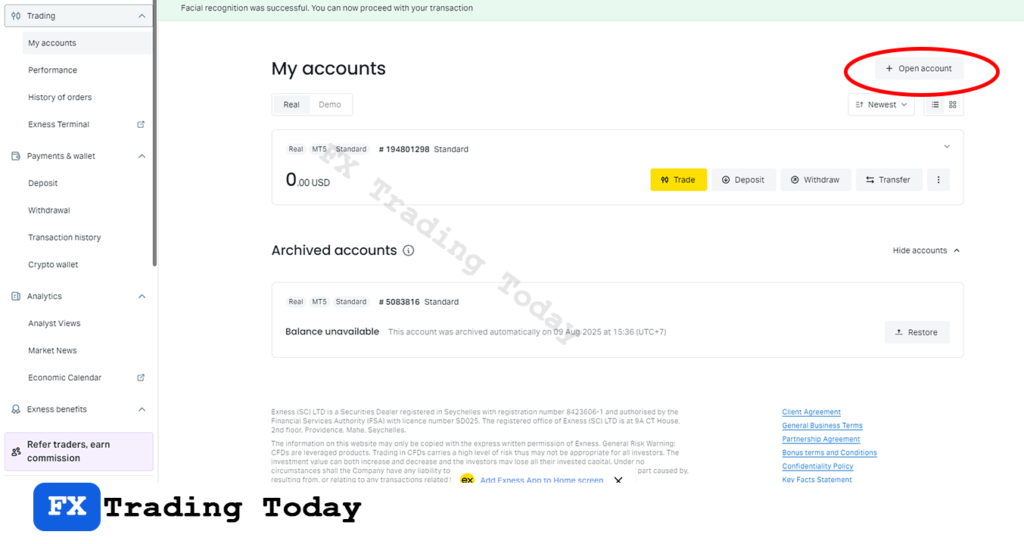
Step 4: Choose Account Type
Select the account that fits your trading style:
- Standard Account (beginner-friendly)
- Pro Account (tighter spreads)
- Raw Spread / Zero (for advanced traders)
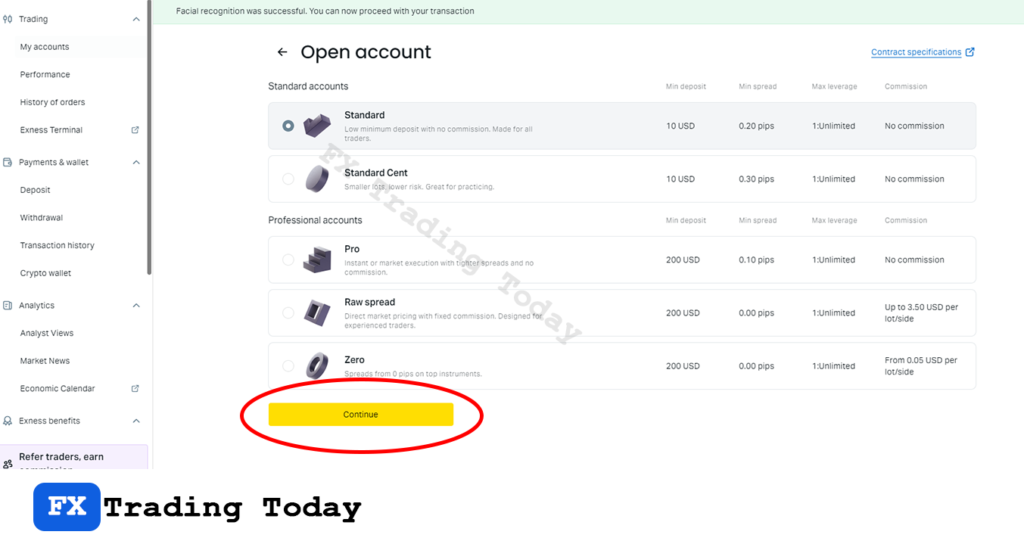
Step 5: Configure Account Settings
Fill in the required details:
- Account currency
- Leverage
- Trading password
👉 Make sure to create a strong trading password for security.
Step 6: Confirm and Create Account
Click Create Account, and your MT4 account will be generated instantly.
After creating the account, you will see:
- MT4 Login ID
- Trading Password
- Server Name
👉 These details are required to connect your account to MT4.
How to Connect Exness Account to MT4 on PC
Step 1: Open MetaTrader 4
Launch the MT4 platform on your Windows or Mac device.
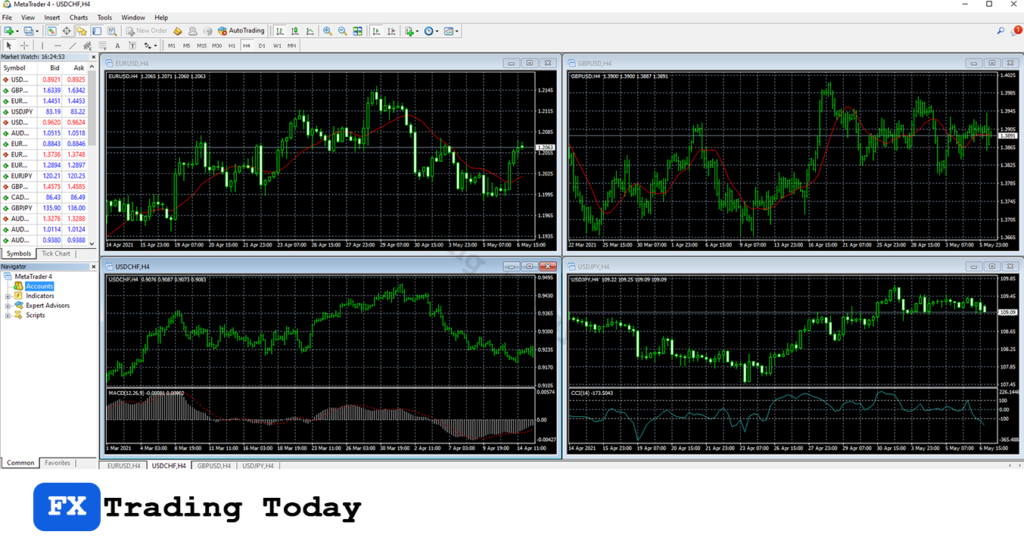
👉 If you haven’t installed the platform yet, follow this step-by-step guide: How to download MT4 Exness
Step 2: Click “Login to Trade Account”
- Go to the top menu
- Click File → Login to Trade Account
- Add Exness Server ( if you never connect )
- Select Exness server corresponding to your account.
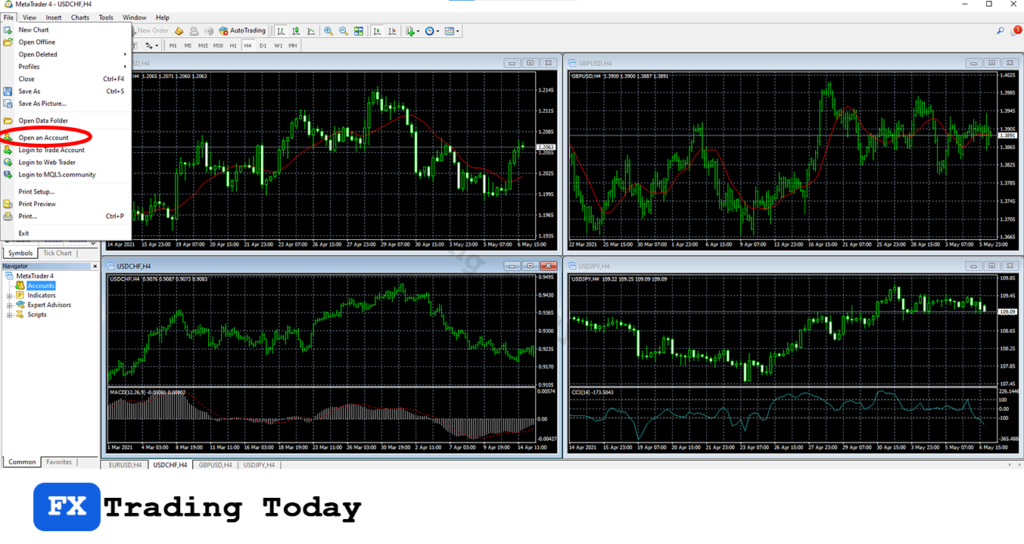
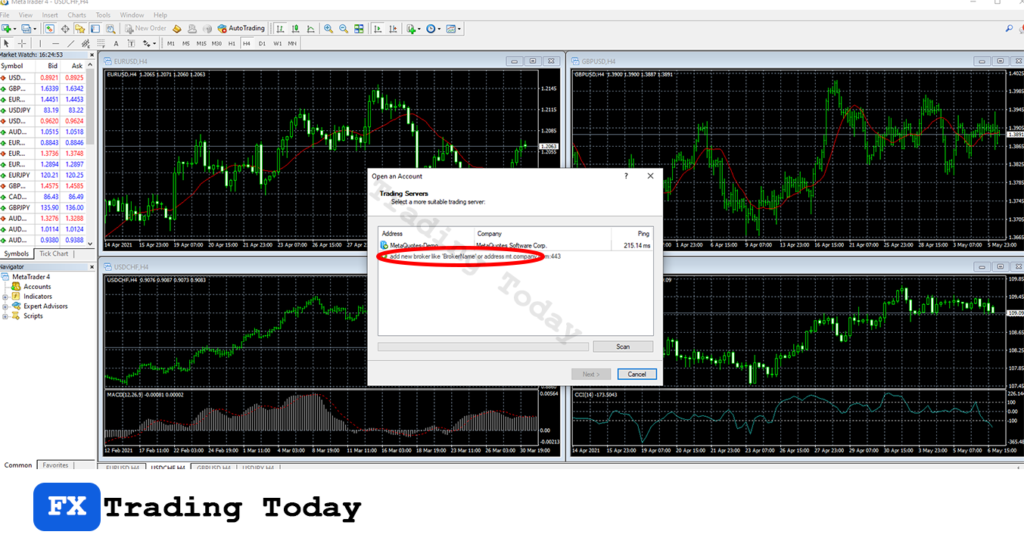
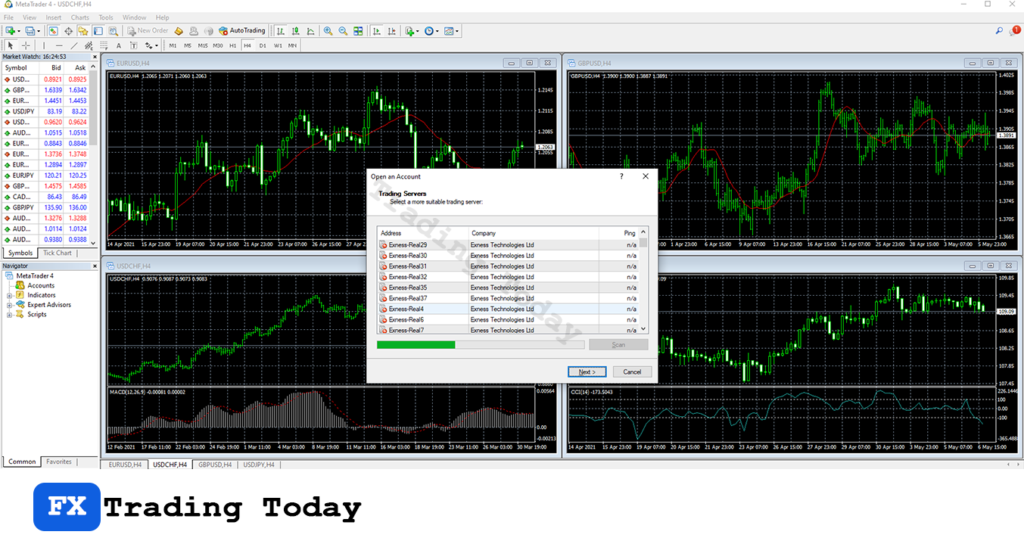
Step 3: Enter Your Exness Account Details
Fill in the following:
- Login: Your MT4 account number
- Password: Your trading password
- Server: Select the correct Exness server
👉 If you don’t see your server, click Scan or enter it manually.
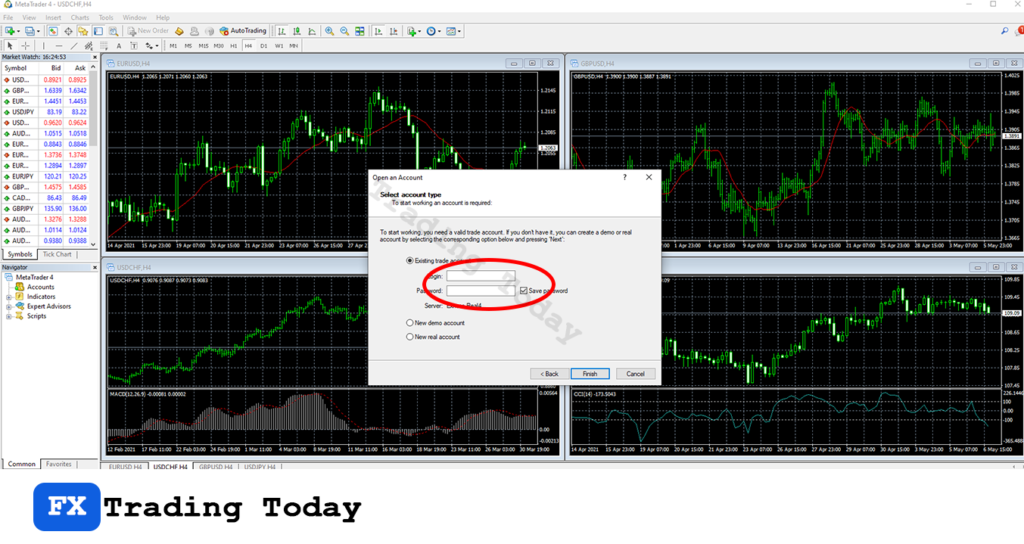
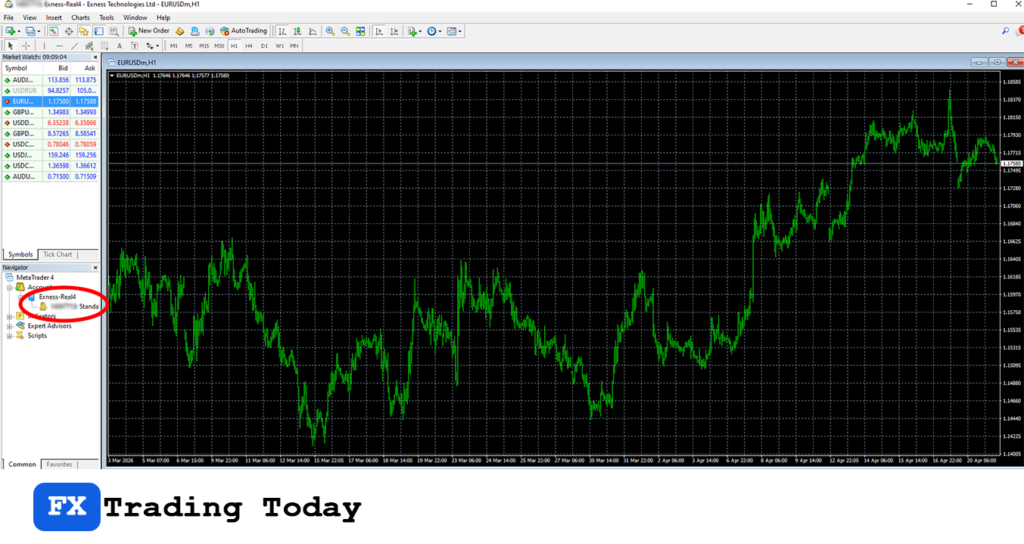
Step 4: Click “Finish”
Once connected, your account and trading data will appear in the terminal.
How to Connect Exness to MT4 on Mobile (Android & iOS)
Step 1: Open the MT4 App
Download and launch the MetaTrader 4 app.
Step 2: Add a New Account
- Tap Settings / Manage Accounts
- Tap + (Add Account)
- Choose Login to an existing account
Step 3: Search for Exness Server
Type your server name (e.g., Exness-Real) and select it.
Step 4: Enter Login Details
- Login (MT4 ID)
- Password
- Server
Step 5: Tap “Sign In”
You are now connected and ready to trade.
Common Issues When Connecting Exness to MT4
Why can’t I log in to MT4?
- Check if login ID and password are correct
- Make sure you’re using the trading password, not investor password
Server not found?
- Recheck server name in your Exness Personal Area
- Use Scan to detect available servers
Connection failed?
- Check internet connection
- Restart MT4 or your device
Tips for a Smooth Connection
Always copy-paste your login details to avoid errors.
Save your login credentials securely.
Use a stable internet connection for better performance.
Double-check the server (Real vs Demo).
Final Thoughts
Connecting your Exness account to MT4 only takes a few minutes, but it’s a crucial step to start trading effectively. Once logged in, you can access real-time charts, place trades, and manage your account seamlessly.
FAQ
Is Exness MT4 free to use?
Can I connect multiple Exness accounts to MT4?
What is the difference between trading password and investor password?
Investor password: View-only access (no trading)